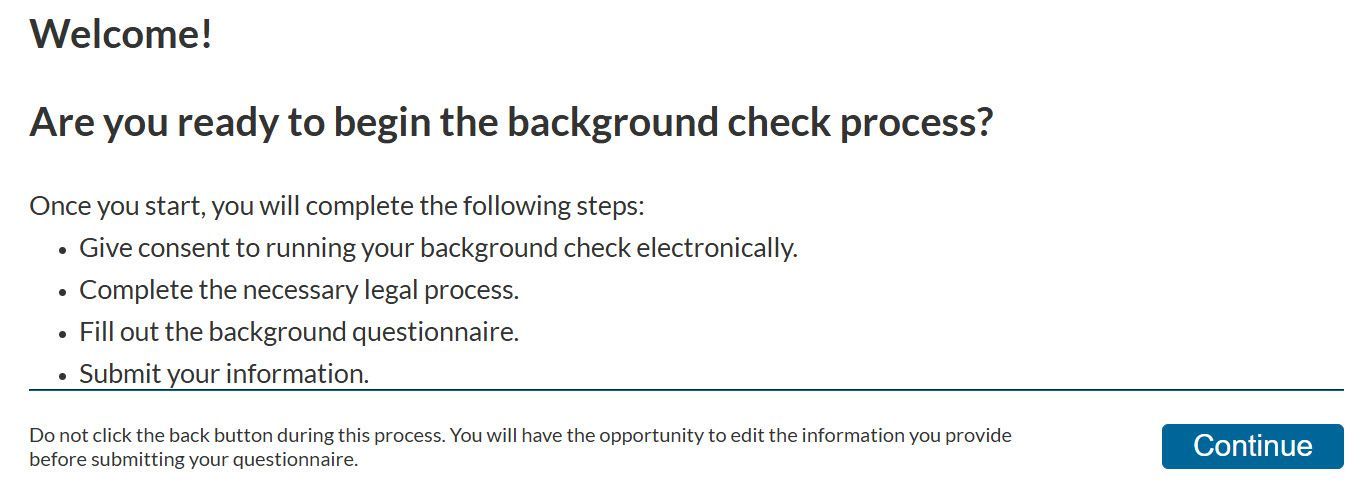
Background Screening
All adult volunteers, including Head Coaches, Assistant Coaches, Team Managers, and Board Members must submit their request for a background screening and clear the background screening.
To complete this requirement, you must login to your PlayMetrics account.
USE YOUR FULL LEGAL NAME WHEN COMPLETING YOUR BACKGROUND SCREENING.
Using a nickname or abbreviations in your member profile will likely cause delays in your background check process.
DO NOT CREATE A NEW ACCOUNT IF YOU ALREADY HAVE ONE.
If you do not remember your password, please utilize the "Forgot your password?" option on the PlayMetrics login screen. Creating another account will cause delays in processing your background screening.
DO NOT USE YOUR SMART PHONE TO COMPLETE THIS PROCESS.
Please use an actual computer and use either Google Chrome or Firefox as a web browser. We've seen the most success with these browsers.
HOW TO COMPLETE YOUR BACKGROUND SCREENING SUBMISSION:
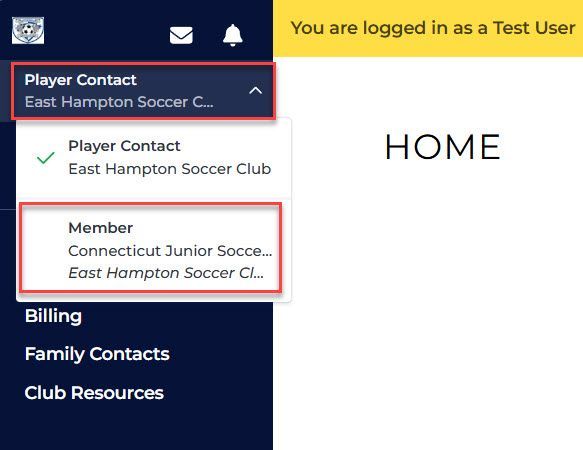
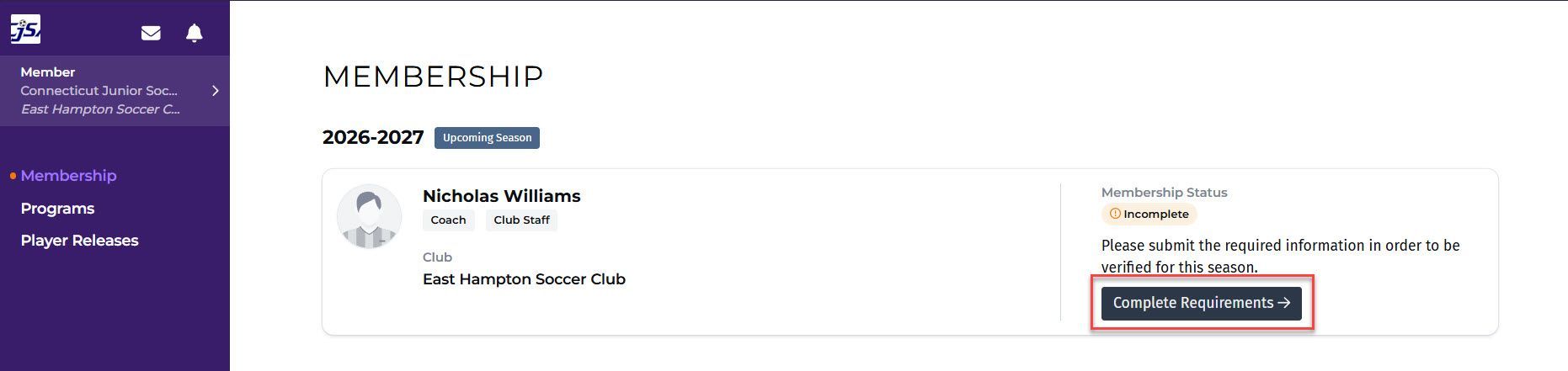
Once logged in, switch to the "Member" view and then click on the "Complete Requirements" button.
Scroll down to the Clearances section to see the Background Screening option.
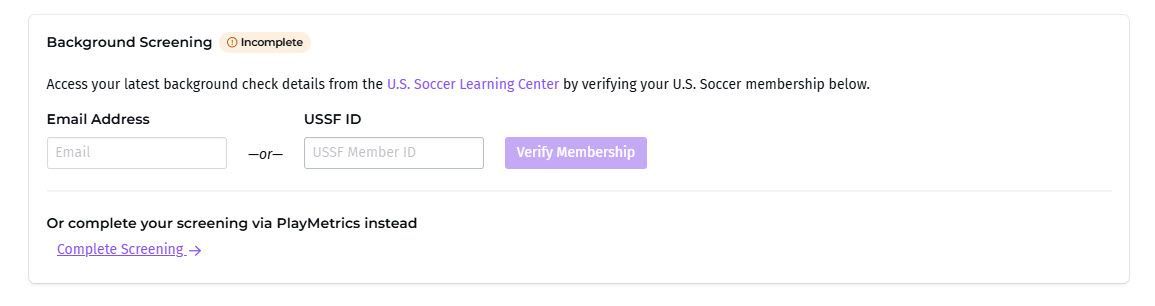
After that, there are two different options:
New & Existing Coaches
- If you completed your Background Screening in the past via the U.S. Soccer Learning Center, you may enter in your e-mail address or your USSF ID and then click the "Verify Membership" button from your Member Requirements page in PlayMetrics.
- Recommended
- You may complete your Background Screening via PlayMetrics by clicking on the "Complete Screening" link from your Member Requirements page in PlayMetrics and confirming your details. Please remember to use your Full Legal Name to avoid delays with the process.